Google Tasks vs Todoist: Which Works Better on Windows?
Choose between the Google ecosystem and a separate task app. Compare Google Tasks, Todoist, and Go2Do for personal tasks, shared projects, and Windows use.
Google Tasks vs Todoist: Which Works Better on Windows?
An email arrives in Gmail. You add a task to follow up, then see that task when you plan your week in Google Calendar. Later, you continue on your phone with the same Google account.
That familiar route is a good reason to choose Google Tasks. But on Windows, you may want a separate task window, faster task entry, or shared projects. Those needs make Todoist worth a look.
The choice depends on what you want to keep. Google Tasks keeps tasks close to your Google work. Todoist gives you a separate place to organize personal and shared projects. Go2Do offers another option: a Windows app for your existing Google Tasks.
Why people choose Google Tasks
Google Tasks fits work that already starts in Gmail and Google Calendar. You can turn an email into a task without copying it into a separate project system. Calendar lets you see tasks alongside your schedule. For personal follow-ups, that may be enough. Google Tasks overview
Your Google account also connects tasks across devices. You can manage the same tasks on a computer and a phone. Sync depends on the connection and account settings, so changes may not appear at once. Google Tasks help
On supported Android devices and accounts, Gemini can add tasks through a conversation. This requires the relevant Google Workspace connection, permissions, and settings. Work or school accounts may also need administrator approval. Availability varies; it is not a feature that works on every phone without setup. Gemini and Google Tasks
If your main tasks are email replies and personal deadlines, you may have little reason to move them elsewhere.
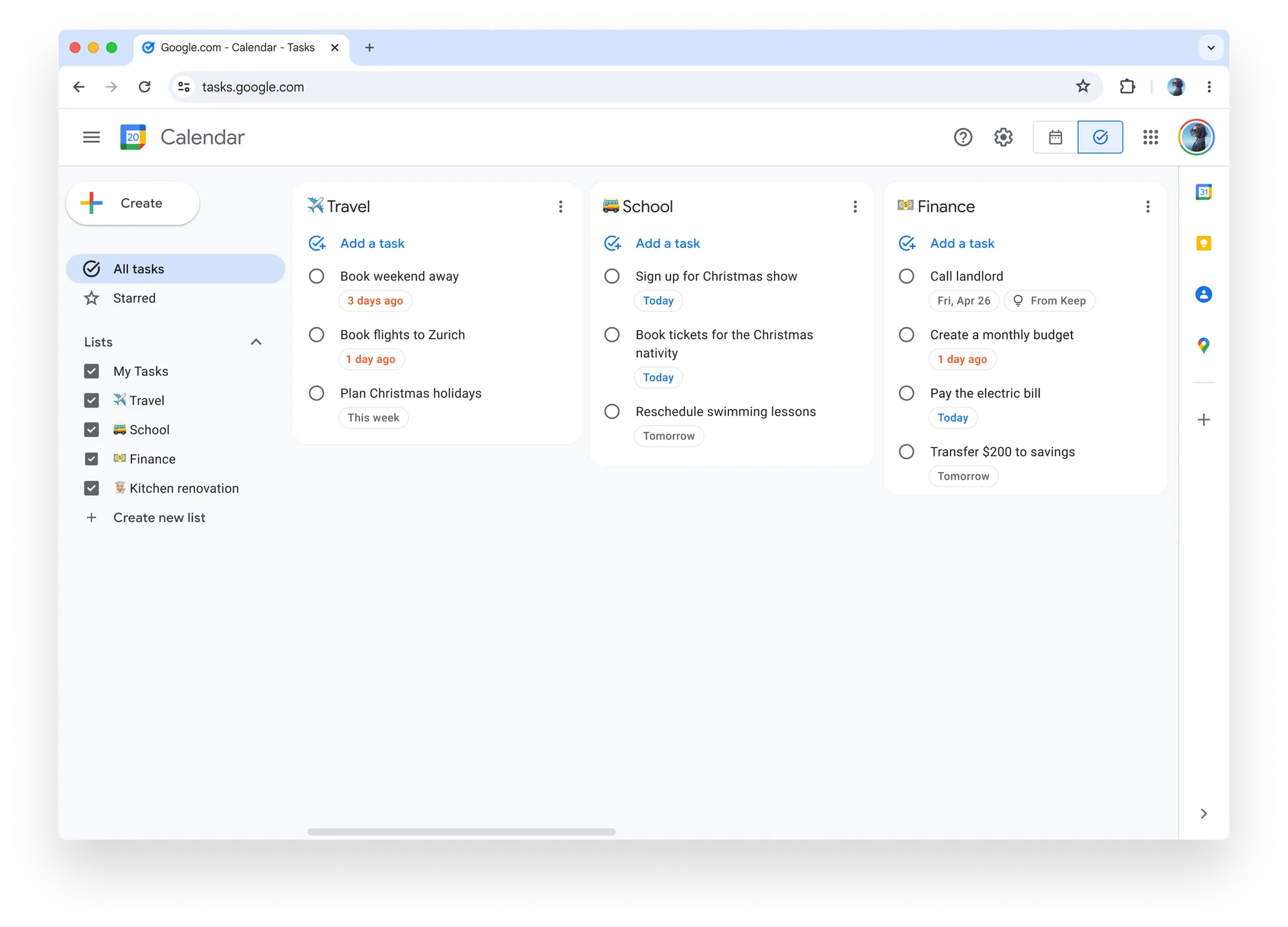
*Google Tasks: an official example of the full-screen web interface. Source: Google, April 2024; the current interface may differ. Source*
Where Google Tasks can feel limited on a desktop
The Gmail sidebar is useful for a quick addition. It can feel small when you want to review several lists or plan a full day.
Google Tasks does offer more space in a browser. Google Calendar has a full-screen Tasks view, which may suit you if you keep Calendar open. Tasks in Google Calendar
The question is whether those views suit your work. A separate desktop window can be useful when you move between documents, email, and other apps. You may want that window without moving your tasks to a different service.
What the Todoist Windows app offers
The Todoist Windows app gives tasks their own space on your computer. Todoist also has mobile apps, so you can use the same task system away from your desk. Todoist system requirements
Quick Add helps you capture tasks as they come up. Projects, views, and filters help you find the next item to work on. These features suit people who need more structure than a few personal lists. Todoist features and plans
Shared projects are another reason to choose Todoist. You can share personal projects, assign tasks, add comments, and attach files. This gives people a place to see who owns each task and discuss the work. Todoist project guide
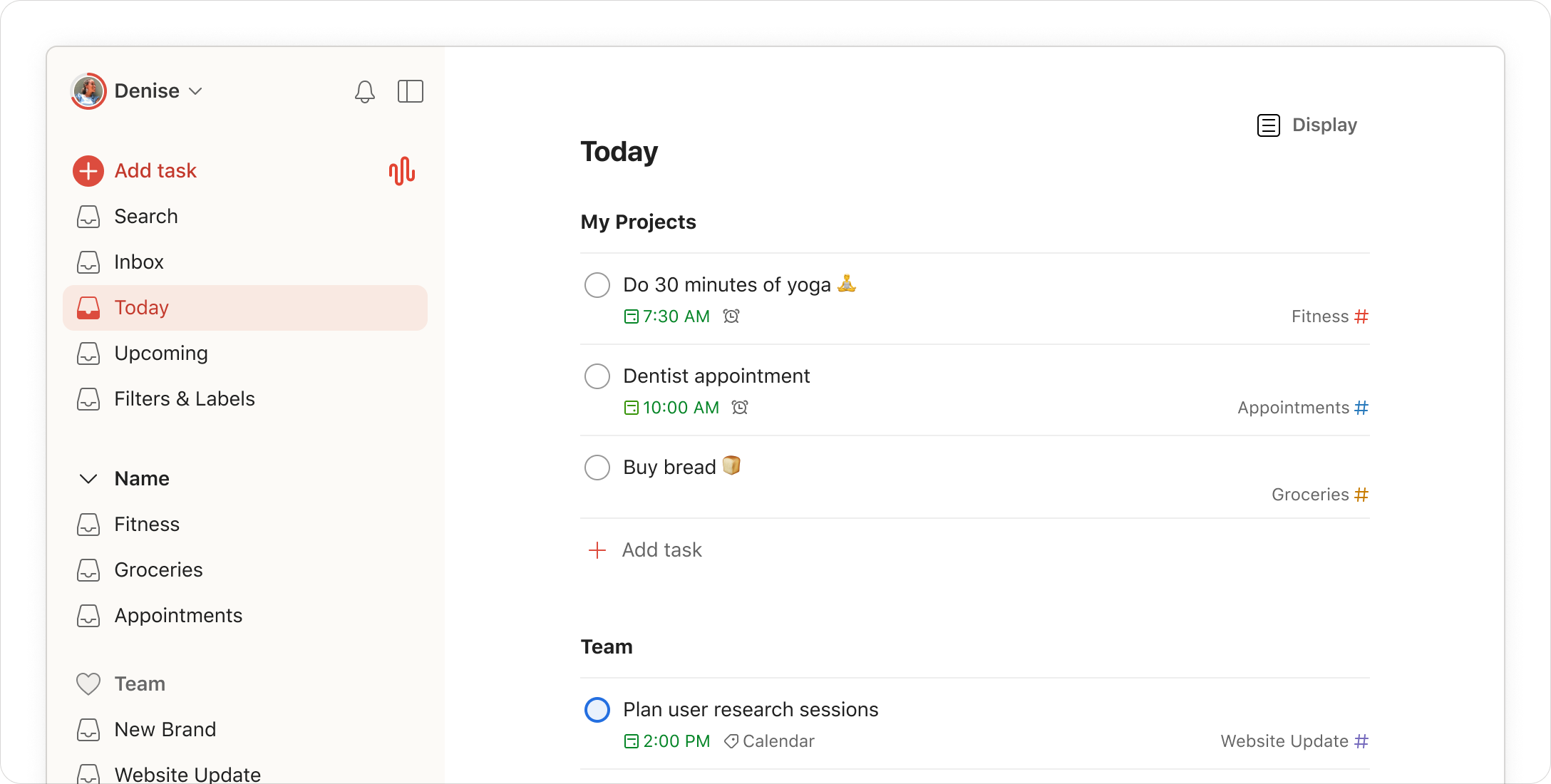
*Todoist: official desktop interface example from its Windows download page. Source*
Todoist free vs paid
The free Beginner plan includes five personal projects, task reminders, and list and board views. Paid plans add features such as the calendar layout and custom reminders. Sharing a personal project does not, by itself, require a Business plan.
The free plan is a useful starting point. A paid plan makes more sense when a specific limit or missing feature affects your work. Current Todoist plan comparison
Todoist connects to Google but keeps a separate task system
Todoist supports Gmail and Google Calendar. You do not have to give up those services to use it.
Its Gmail integration can turn an email into a Todoist task. The Calendar integration can show Google Calendar events in Todoist. It can also send eligible Todoist tasks to Google Calendar as events. These integrations are available on the free plan, but they need authorization and setup. Gmail integration and Calendar integration
Those calendar events do not become Google Tasks. Your Todoist tasks remain in Todoist, while your Google Tasks remain in Google Tasks.
This distinction matters when you choose where to record work. Todoist may be worth the extra setup if you need shared projects and more ways to organize tasks. If you only want a better Windows view, moving to another task system may solve more than you need.
Where Go2Do fits
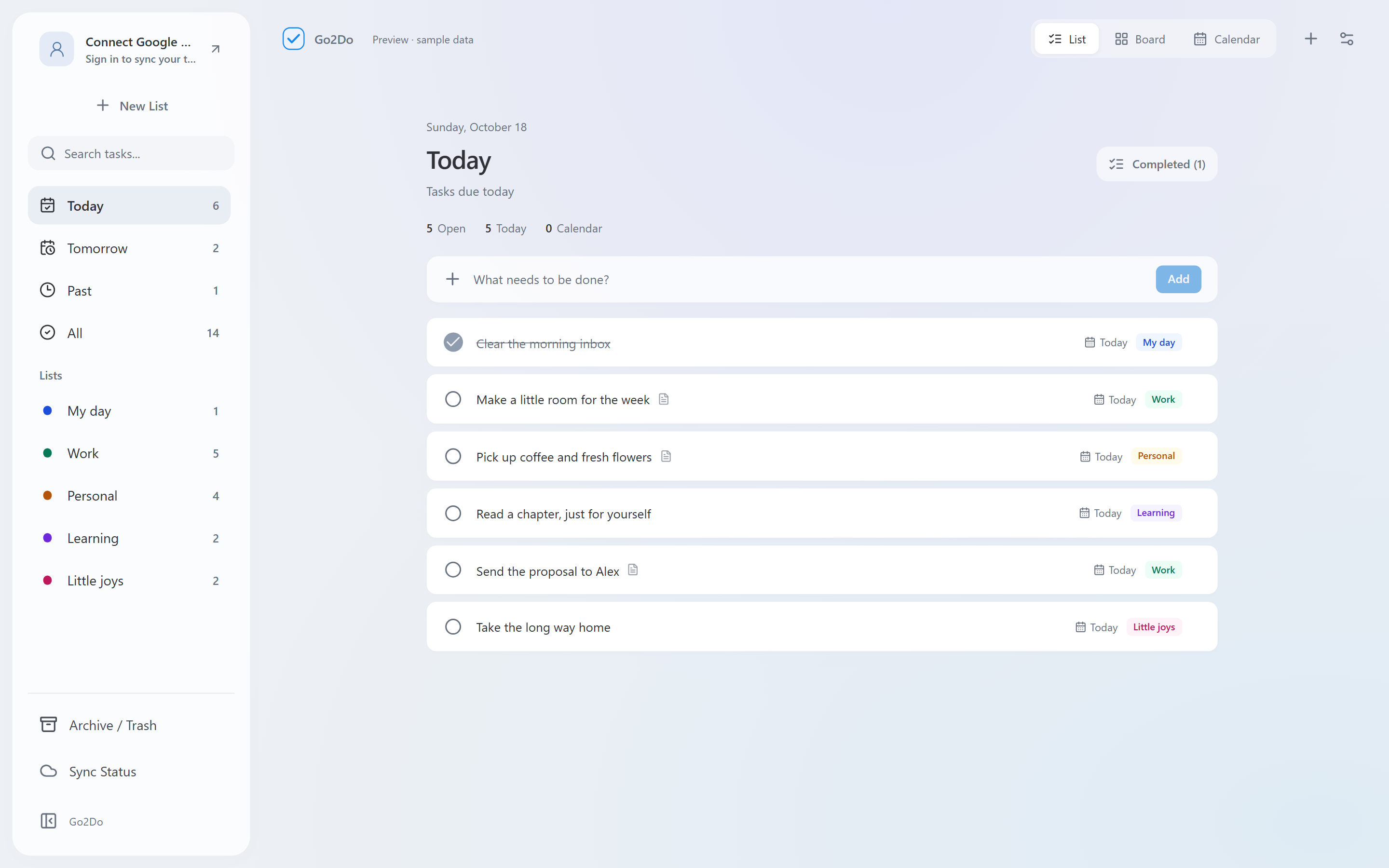
Go2Do is a third-party Google Tasks app for Windows x64. It gives your existing tasks a separate desktop window while keeping Google Tasks as the task service. You add an app, but you do not have to start a separate task system. Go2Do product details
You can work with multiple lists, notes, and subtasks. Today, Tomorrow, and Overdue views help you see which tasks need attention.
Go2Do also offers list, priority board, and calendar views. Quick Add and configurable keyboard shortcuts help with task entry. Search works within the current view. The calendar can show Google Calendar events alongside tasks.
There are limits to keep in mind. Go2Do should not be treated as a replacement for Todoist shared projects, assignments, or task discussions.
Dates can sync to Google Tasks. A time entered through Go2Do Quick Add currently goes into the task notes; it does not create a timed reminder. For an important reminder, you need to confirm it in an app that supports that function. Go2Do feature and sync details
*Go2Do: official Today-view screenshot with sample data. It is an independent Google Tasks client for Windows. Source*
Which option fits your work
Google Tasks is a sensible starting point if Gmail, Calendar, and personal follow-ups cover most of your needs.
Todoist is a stronger candidate if you want a dedicated task system with shared projects and more ways to organize work.
Go2Do suits a narrower need: you want to keep Google Tasks and use a separate Windows app to manage them.
For more detail on Google Tasks for Windows, our guide compares browser access with a desktop client. The Go2Do website explains the current app features.
If Outlook is central to your work, compare Google Tasks with Microsoft To Do on Windows before choosing a different task service.