Google Tasks on Windows: Should You Use the Web App, Browser App, or a Desktop Client?
Compare three ways to use Google Tasks on Windows: the official web app, a browser-installed desktop window, and Go2Do. Choose by your workflow, quick-add needs, and access to cached tasks offline.
You can use Google Tasks on Windows in three ways: open the official web app, install that page as a desktop app through your browser, or use a third-party client such as Go2Do.
The web app works well if you spend most of your day in Gmail or Calendar. A browser-installed window puts it on the taskbar. Go2Do lets you open quick add from another Windows app and view previously synced tasks offline.
The Go2Do team wrote this comparison. We develop the Google Tasks desktop app for Windows described below. This guide compares access methods; the product page covers Go2Do's features.
Option 1: Use the official Google Tasks web app
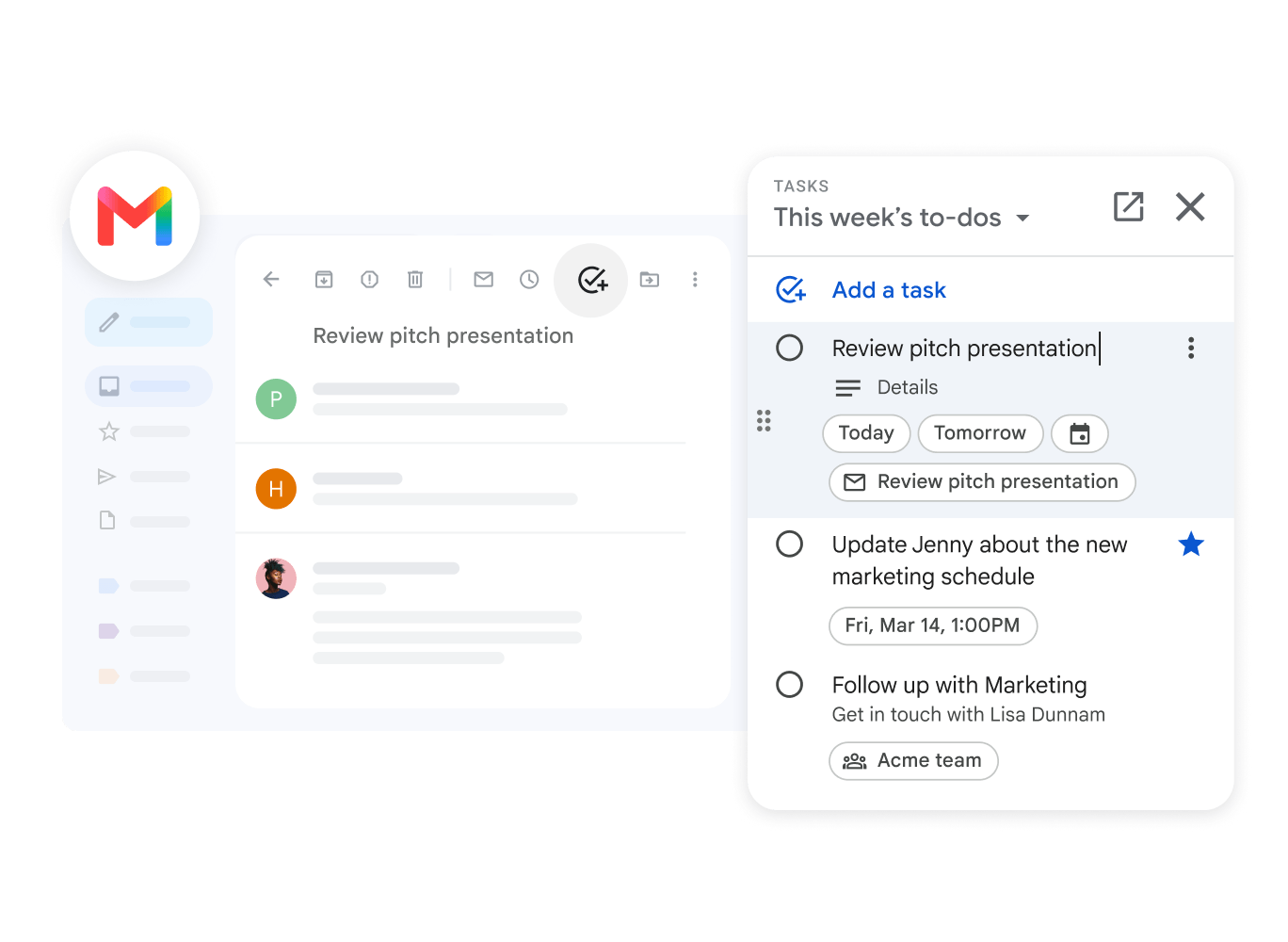
Figure 1. Google's example of adding and managing tasks from the Gmail side panel. Image source · Open Google Tasks
Open Tasks from the right sidebar in Gmail, or use the full Tasks view in Google Calendar. Sign in to the Google account that holds your task lists. Google documents both browser access and the Gmail side panel in its Google Tasks help guide.
Benefits
- You do not need to install a separate client or authorize a third-party app.
- You can record a follow-up task while reading an email.
- You can use Google Tasks full screen when you need more space than the sidebar provides.
The web app also supports Google Tasks keyboard shortcuts. Try the built-in shortcuts before choosing a separate client.
Limits
The task interface stays in your browser. When you work in another app, you must switch back to it. With many tabs open, you may also need to find the right tab.
For example, adding "Reply to the quote on Friday" is convenient while you read a customer email. Doing the same from a spreadsheet requires a switch to the browser.
Option 2: Install Google Tasks as a Windows desktop app through your browser
Your browser can give the Google Tasks web app its own window and a Windows taskbar icon. This keeps the Google interface while making it easier to open.
Benefits
- Open your task list from the taskbar instead of searching through tabs.
- Keep tasks in a window separate from your other browser pages.
- Continue using the familiar Google interface.
Limits
A browser installation changes how you open the page. It does not add a quick-entry widget or offline features by itself. Available features still depend on the web app.
How to get Google Tasks on desktop with Microsoft Edge
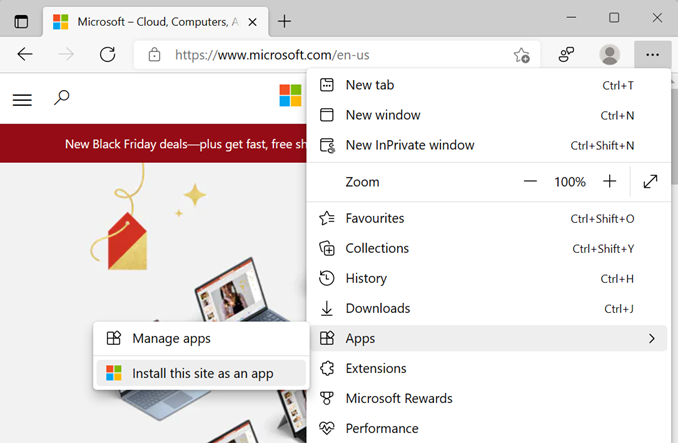
Figure 2. Microsoft's installation example, published in 2022. The example uses a Microsoft website, not Google Tasks. Menu locations may change between browser versions. Image source · Current Edge instructions
- Open the full Tasks view in Microsoft Edge.
- Open Settings and more → More tools → Apps → Install this site as an app, following Microsoft's current Edge instructions.
- Pin the installed app to the Windows taskbar.
You can then open the task list in its own window from the taskbar. Follow the current Edge installation instructions if your menus differ from the example.
Option 3: Install the Go2Do Windows client
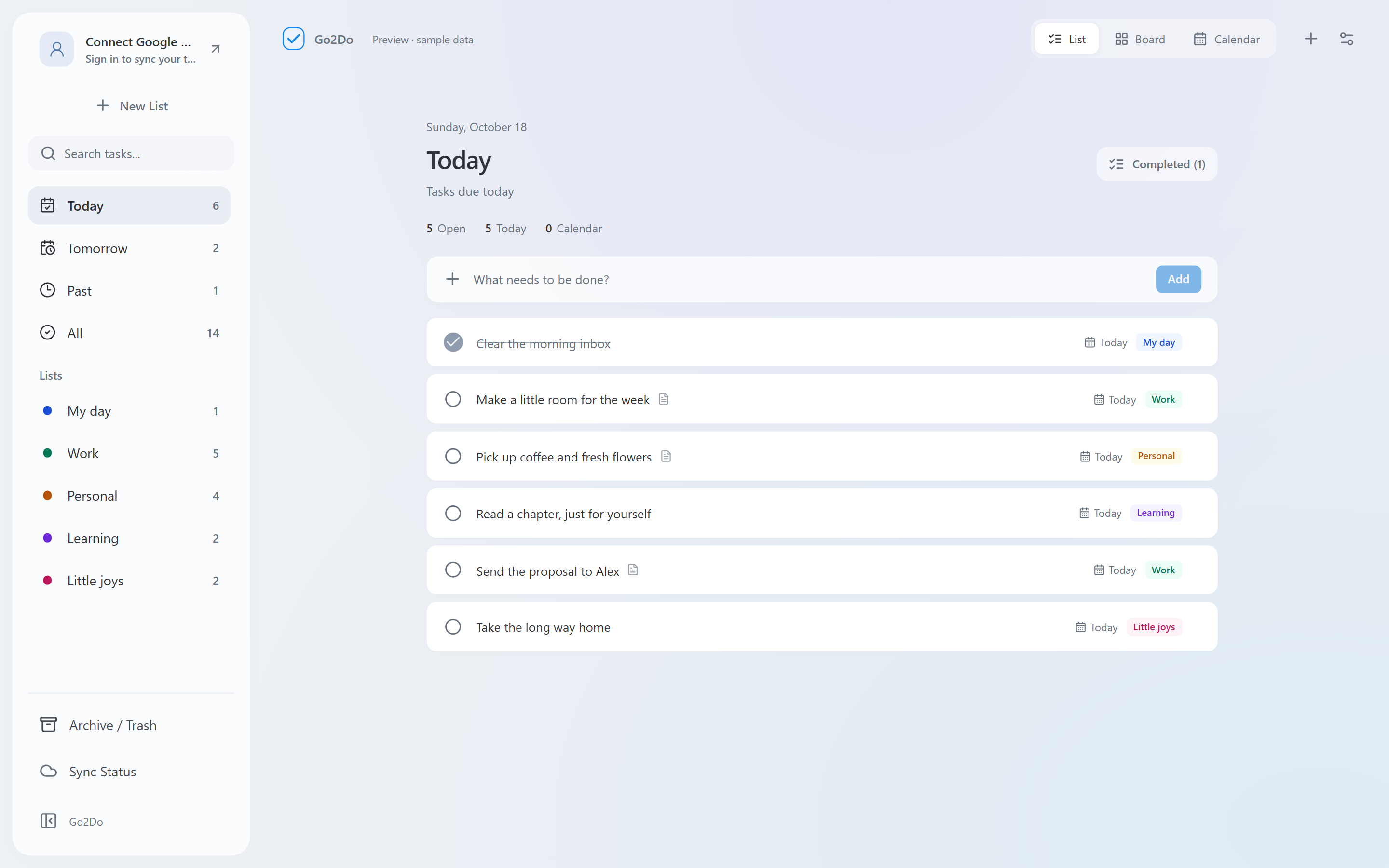
Figure 3. The Go2Do client interface shown on its official website, with sample data. View original image · Go2Do website
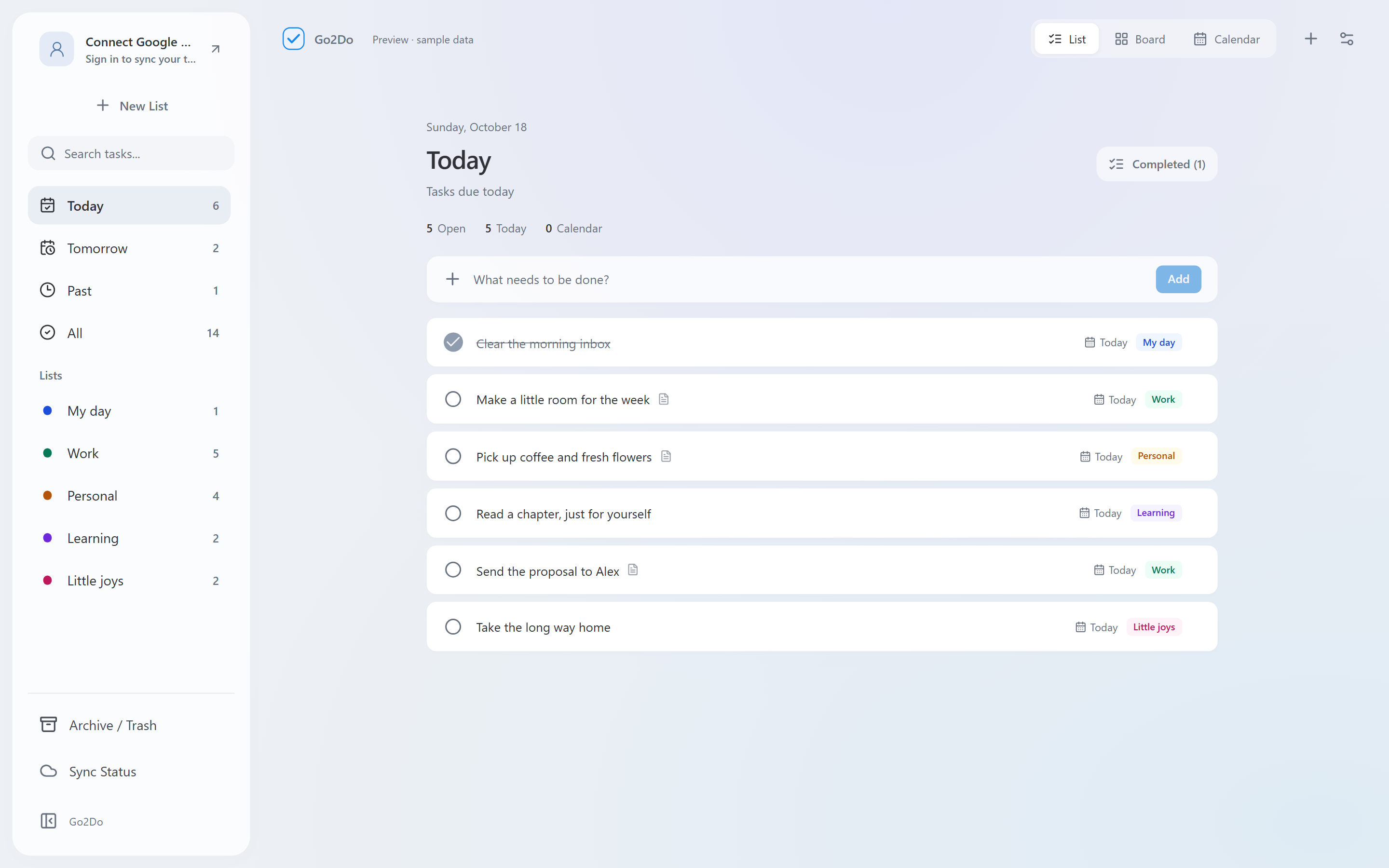
Go2Do is a third-party Google Tasks client for Windows. After installation, authorize Go2Do to access your Google Tasks data and complete the first sync.
Benefits
- Open a quick-entry widget with a keyboard shortcut.
- Enter dates and times with the task text to reduce manual entry.
- Search loaded tasks across lists from All tasks.
- View cached tasks offline after the first successful sync.
Limits
- You must install the software and authorize third-party access to Google Tasks.
- Go2Do supports Windows 10 and Windows 11 on x64 systems.
- The first sign-in and sync need an internet connection.
- Offline changes stay on your computer until you reconnect and sync. New tasks from other devices also need a sync before they appear.
- Loading Google Calendar events requires an internet connection.
Compare capture workflows before choosing
A separate client is useful if you frequently capture tasks from another Windows app. If you already have Tasks open in your browser, its own entry controls may be sufficient. See the dedicated Google Tasks keyboard shortcuts and Quick Add guide for shortcut setup and examples.
For unreliable connections, read the offline Google Tasks guide before relying on cached tasks. Offline task changes and live calendar loading have different limits.
Choose a solution for your workflow
| User type | Typical situation | Problem to solve | Suitable option |
|---|---|---|---|
| Mostly work in Gmail and Calendar | Record a follow-up after reading a customer email | Add a task from the current page without installing another app | Google Tasks web app: use the sidebar or full Tasks view |
| Like the web app and want a separate window | Check tasks several times a day, with many browser tabs open | Open a separate task window from the taskbar | Browser-installed desktop app: install the Google Tasks page through your browser |
| Switch between Windows apps | Remember a task while writing, using a spreadsheet, or attending a meeting | Record the task and its date with fewer interruptions | Go2Do: open the quick-add widget with a keyboard shortcut |
| Manage several project lists | Remember a task but not the list that contains it | Avoid checking each list separately | Go2Do: search loaded tasks from All tasks |
| Travel or have unreliable internet | Check tasks while offline | See tasks that were previously synced | Go2Do: view cached tasks after the first successful sync |
You can combine these options. Use the web app while handling email, and use Go2Do to record tasks from other Windows apps. Start with the features you need rather than installing a client just to get a desktop icon.
If you need the quick-add widget or offline access to cached tasks, download Go2Do for Windows. Review the requested permissions and privacy policy before connecting your Google account.
Common questions about Google Tasks on Windows
Does Google Tasks have a desktop app?
Google provides browser access to Tasks through Calendar. You can give that page its own window by installing it through Edge. That window still runs the Google web app; Go2Do is a separate Windows client built by our team.
Can I use Google Tasks offline with Go2Do?
After signing in and completing the first sync online, you can view tasks already cached in Go2Do. Offline changes remain on your computer until you reconnect and sync. Tasks added on another device will appear after syncing; Google Calendar events need an internet connection. See the Go2Do offline-use details.
Where can I find shortcut instructions?
Use the Quick Add and keyboard shortcuts guide for the default keys, conflict checks and capture steps. This comparison focuses on choosing an access method.