Google Tasks Keyboard Shortcuts on Windows: Quick Add Without Switching Apps
Google Tasks keyboard shortcuts help when you are already working in a task list. Capturing a new task while you write a report or attend a meeting is a different need. Start with the web shortcuts, then see how to add tasks from another Windows app.
Google Tasks keyboard shortcuts help when you are already working in a task list. Capturing a new task while you write a report or attend a meeting is a different need. Start with the web shortcuts, then see how to add tasks from another Windows app.
Shortcuts in the Google Tasks web interface
Open Tasks in Google Calendar, or the Tasks side panel in Gmail or Calendar. Choose a list, then click a task or use Tab to focus a task control.
These five commands cover common list work. Google's official shortcut reference has the full set.
| Action | Windows shortcut |
|---|---|
| Create a task or finish an edit | Enter |
| Complete the focused task | Space |
| Move a task up or down | Ctrl + Up or Ctrl + Down |
| Create a subtask | Ctrl + Alt + Enter |
| Open the shortcut reference | Ctrl + / |
To add a task, activate Add a task, type its title, and press Enter to finish the inline edit. The separate Create dialog uses Save instead. See Google's add-and-edit instructions for both paths.
Check focus before you use a command. Space inside a title types a space; move focus to the completion control to complete the task. Enter also depends on context: it can add a task below, except in the notes field.
For manual reordering, select List options → My order, then focus the task and use Ctrl + Up or Ctrl + Down. Google requires My order for reordering. If a command does nothing, check focus before trying it again.
Why web shortcuts cannot capture tasks from other apps
Google Tasks shortcuts work inside its web interface. They do not open task entry while you type in a document, use a meeting app, or read another browser tab.
This follows from how browsers deliver keyboard events: keys go to the focused element. A Tasks page in a background tab, or in a minimized browser, cannot receive them as a systemwide capture command. The page may still be running; it needs focus for these shortcuts.
You therefore have to find Tasks, enter the task, and return to your work. A global shortcut can open a capture window without that first trip to the browser tab.
Add to Google Tasks with a keyboard shortcut
Go2Do is a desktop client with Quick Add for Google Tasks on Windows. Its global Quick Add shortcut opens a small task-entry window over your current app. Use it for quick capture without first finding the Google Tasks webpage or opening Go2Do's full task list.
Go2Do must be running, and Windows must let it register the shortcut. You can hide its main window and keep using the global shortcuts. Fully exiting the app disables them.
| Action | Default shortcut | Where it works |
|---|---|---|
| Open Quick Add | Ctrl + N | Global, while Go2Do is running |
| Show or hide the main window | Ctrl + Shift + Space | Global, while Go2Do is running |
| Search tasks | Ctrl + F | Inside Go2Do |
| Open Settings | Ctrl + , | Inside Go2Do |
Ctrl + N here is Go2Do's default, not an official Google Tasks web shortcut. Your assigned keys may differ.
Set up a shortcut that fits your work
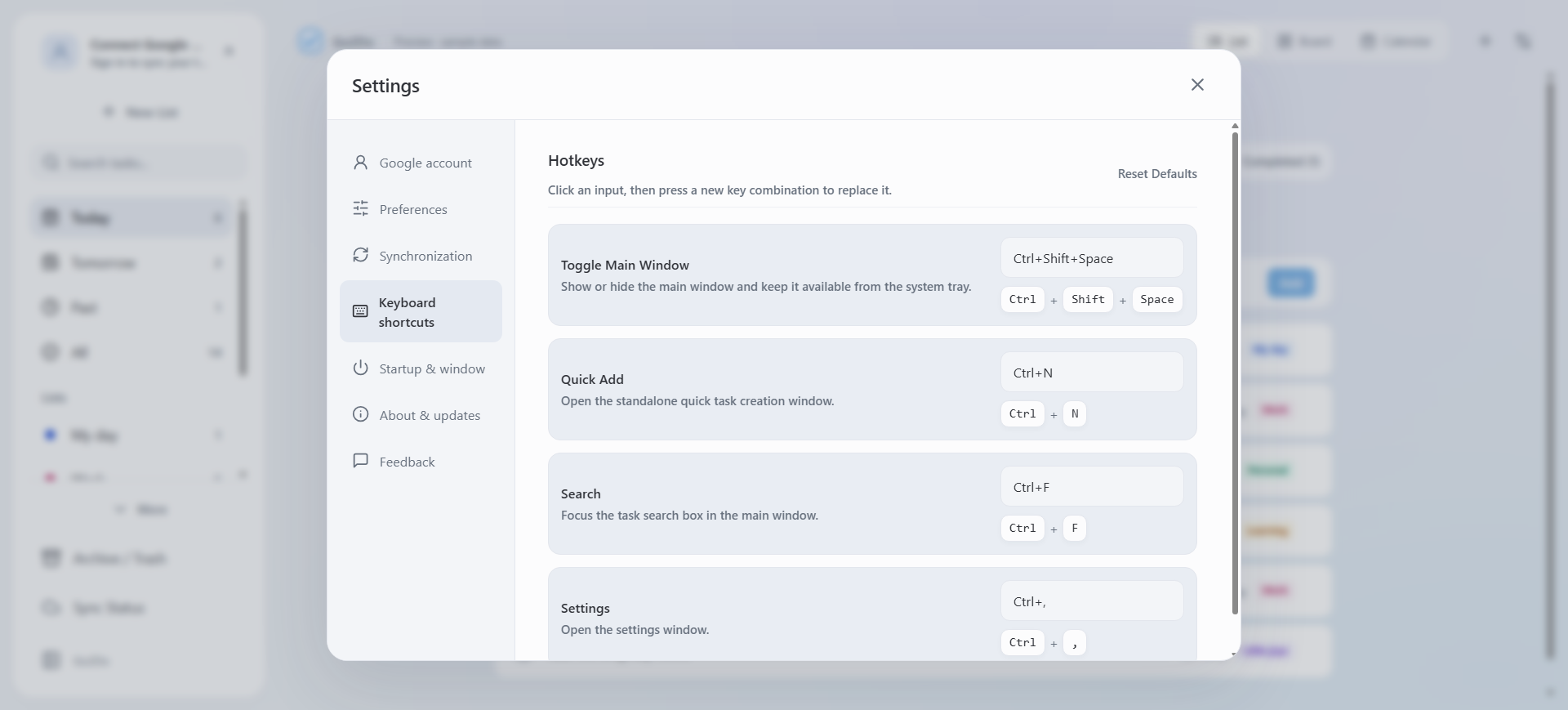
Open Settings → Keyboard shortcuts in Go2Do. Check the Quick Add combination and change it if you use those keys in another app. Set the Toggle Main Window shortcut separately: opening a capture window and bringing back your full task list serve different purposes.
Keyboard shortcuts in Go2Do settings.
Test Quick Add from an app you use often. For example, return to your document and press the assigned keys. Check that the small capture window opens before you rely on it during a meeting.
Capture a task, then return to your work
Suppose you are writing a report and remember to ask a colleague for a missing figure. Open Quick Add and enter "Ask for the updated sales figure". Save it, then return to the paragraph you were writing. You can review the task later instead of opening your full list during the writing session.
The same workflow fits a follow-up that comes up in a meeting or a task you notice while reading a browser page. Write enough detail to understand it later. Quick Add captures what you type; it does not automatically turn the meeting or webpage into a task.
- Press your Quick Add shortcut while Go2Do is running.
- Enter the task name.
- Choose the task list.
- Add a date or time if you need one.
- Check the fields, then select Create Task or press Ctrl + Enter.
- Return to your original app.
Choosing the list during capture puts a work follow-up in the right place. To do this from the keyboard, type a space followed by # after the title. Type to filter your lists, then use Up / Down and Enter to select one. See Go2Do's product guide for this list-selection method.
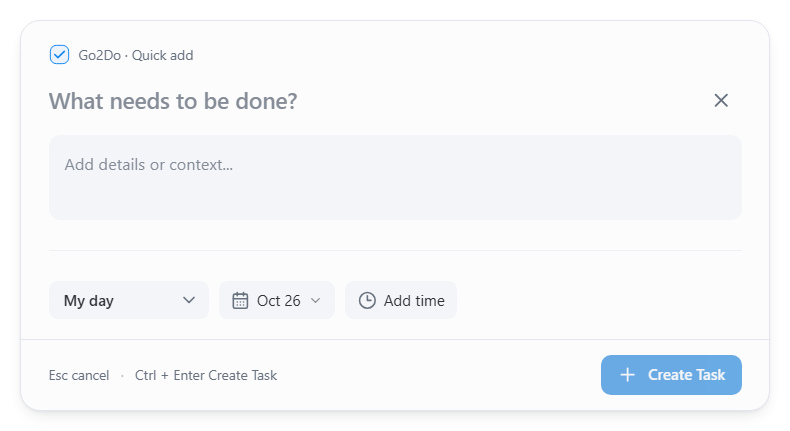
The Quick Add window, ready for a new task.
Bring back the full list when you need it
Use Ctrl + Shift + Space when you want to see the main Go2Do window, rather than add one task. This is useful between work sessions: bring up the list, check what needs attention, then use the shortcut again to hide it. Hiding the window keeps the app available; it is different from exiting Go2Do.
Inside Go2Do, Ctrl + F focuses task search. Use it to find a task in your current view before you edit it or check its details. Ctrl + , opens Settings, where you can adjust shortcut assignments. These two commands need Go2Do's interface to have focus; they are not global capture shortcuts.
Add a date and time
A task can be worth capturing before you know when you will do it. Leave the date unset if it is not needed. When you do know it, Quick Add can recognize date and time text, so you can enter the action and its timing together:
Send project outline tomorrow at 9 am
For an entry made on October 26, "tomorrow" means October 27, as illustrated below. On another day, expect a different date.
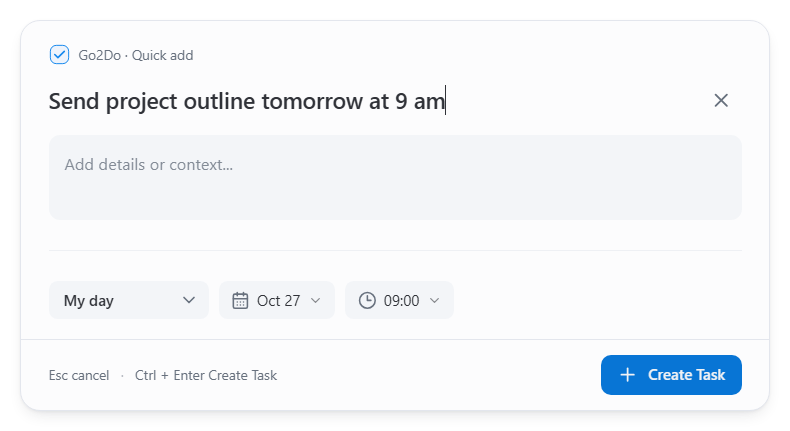
Quick Add recognizes the date and time in the task text.
Check the task name, selected list, and detected date and time before you save. Correct any field that does not match your intent. This check matters with relative dates such as "tomorrow" and with ambiguous number formats.
Go2Do's product guide explains that task dates sync with Google Tasks, while times entered in Quick Add are kept in task notes. A recognized time is not a promise of a timed notification on every device.
If a Go2Do shortcut does not work
Check that Go2Do is running, then open Settings → Keyboard shortcuts and confirm the assigned keys. If the app reports a registration failure, choose another combination and test it from your usual work app.
Conflicts can affect a familiar shortcut. For example, Chrome uses Ctrl + N to open a new window. If Chrome opens instead of Quick Add, check Go2Do's registration and choose different keys if needed. Keep the combinations you depend on in other apps available.
Choose the right shortcut for the task
Choose by where you are working and what you want to do next. The web shortcuts suit work inside an open list. Go2Do's global shortcuts suit capture or a quick look at your desktop task view.
| Where you are working | What you want to do | Use this workflow |
|---|---|---|
| Google Tasks is open and focused | Plan the day, reorder the list, or mark tasks complete | Stay in Google Tasks and use its web shortcuts. You are already in the right interface. |
| Google Tasks is open for a list review | Edit several task titles or details | Keep working in the web list. Opening a separate capture window adds a step to this job. |
| A report, browser page, or meeting app has focus | Capture one new task, then resume that work | Use Go2Do Quick Add with the app running and its shortcut registered. Choose the list, save, and return to the original app. |
| You are working on the Windows desktop | Bring up the full task view, then hide it again | Use Go2Do's main-window toggle. Keep Go2Do running and its global shortcut registered. |
A date alone does not decide which tool to use. Google Tasks lets you enter task dates and times, and Go2Do Quick Add can recognize them in your text. Choose the entry flow that fits your current work, and check the saved details.
You can use both: review and organize in the web interface when it is already open, then capture new tasks with Go2Do during other work. For a broader comparison, read Google Tasks on Windows: Web App vs. PWA vs. Desktop Client.
To try this workflow, download Go2Do for Windows, connect your Google account, and test Quick Add from an app you use every day.