Google Tasks Kanban Board on Windows: Go2Do's Priority View
Use Go2Do's board to group Google Tasks by priority on Windows. Learn how dragging differs from completing a task or moving it to another list.
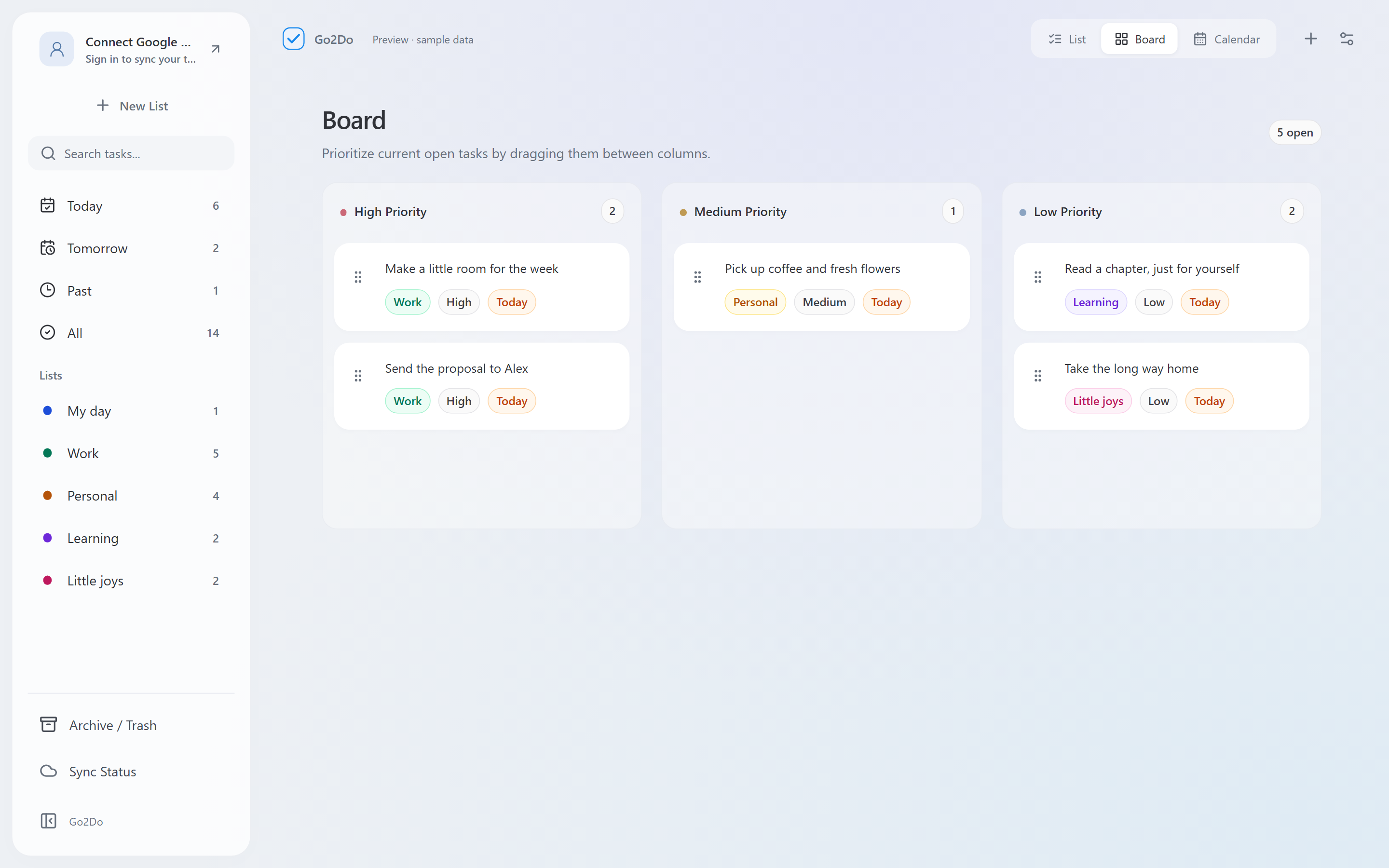
Go2Do provides a board view for Google Tasks on Windows. Its columns group tasks by priority. It is a priority board, rather than a configurable project workflow with To do, In progress and Done stages.
Open a board for the work you want to review
Connect your Google account, let the first sync finish and choose the list or smart view you want to work in. Select Board from the view controls.
Start with one project list so the board contains a manageable set of tasks. The selected list or smart view determines which tasks you are reviewing; changing the presentation does not merge all of your lists.
Use columns to decide what to work on first
Drag a task between priority columns when its importance changes. For example, move a customer reply into a higher-priority column when you need it before a meeting. Keep the task title specific enough to explain the action.
Changing priority is different from changing the due date. A high-priority task does not automatically become due today. Open the task details and set the date separately when a real deadline exists.
Completion, priority and lists are different decisions
A task can be important and still incomplete. Use the completion control to finish it; dropping it in a different priority column does not mark it done.
Likewise, board columns are not Google Tasks lists. Moving a card between priorities is not the same as transferring it from a work list into a personal list. Use the list controls when you intend to change where a task belongs.
The Google Tasks API resource defines task fields such as title, status, date and position. Go2Do's priority presentation is a client feature; do not assume every Google interface will display the same board.
A short daily review
Choose your working list, scan the board and identify a small number of tasks that need attention. Check dates for deadlines, then complete tasks as you finish them. If the board feels crowded, switch to List for detailed editing or Calendar to review dated work.
Use the board when priority is the decision you need to make. If you need custom stages, shared project workflows or a team kanban system, this priority view alone does not establish those capabilities.
Read Go2Do's task-view overview for the other views, or restore a completed task if you marked a card done by mistake.