How to Use Google Tasks and Google Calendar Together on Windows
Use Google Tasks and Google Calendar together. Add tasks to your calendar, or see tasks and daily events in one Go2Do window on Windows.
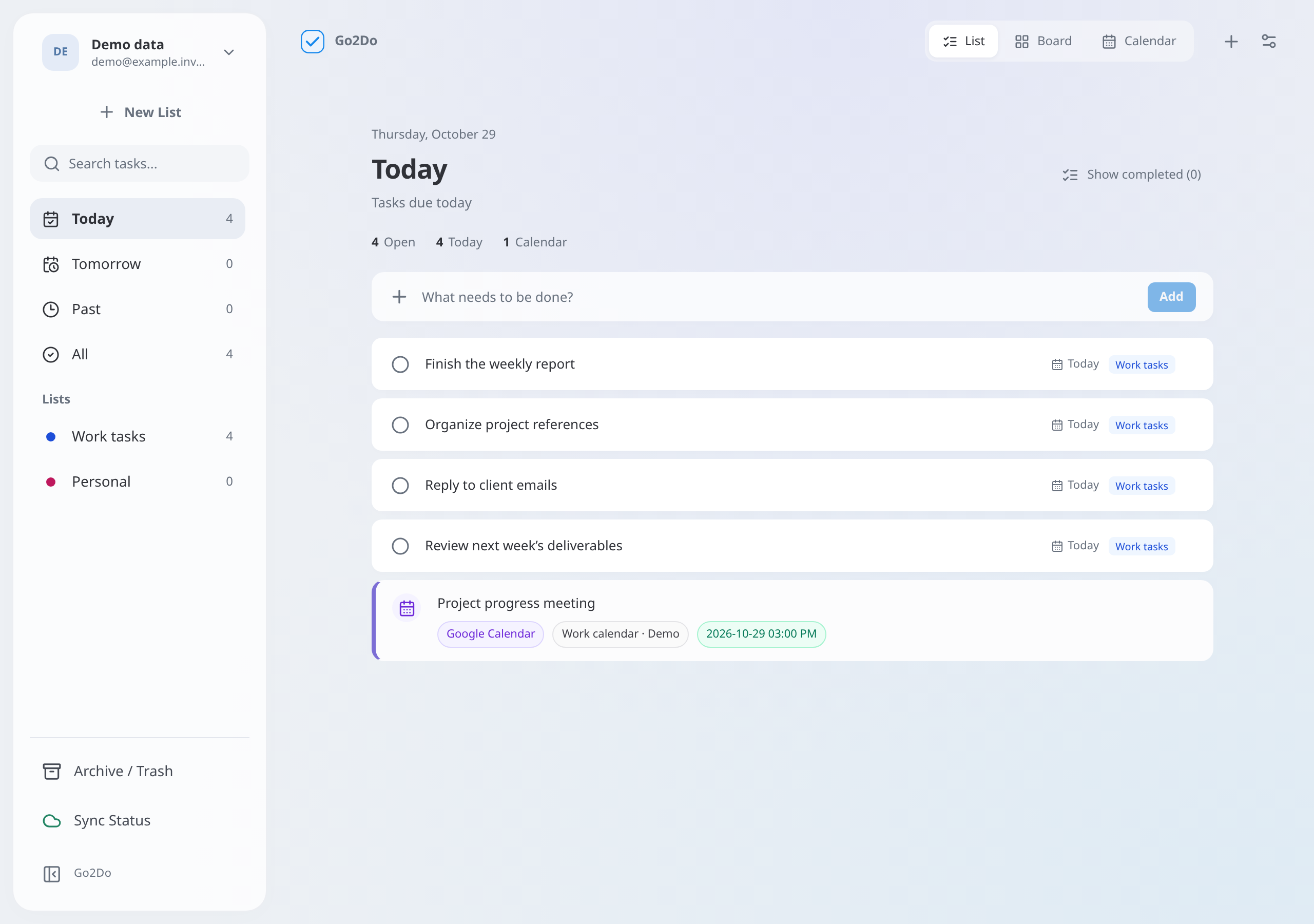
Your task list has twelve items today. Your calendar has one meeting at 3 PM.
You add tasks, change details, and complete tasks during the day. But you do not look at your calendar frequently. You then see the meeting, but you do not have sufficient time to prepare.
Google Tasks and Google Calendar can show your tasks and meetings for the same day. The question is how to see both without more steps.
Many tasks, but a small number of calendar events
A fixed start time is not necessary for most small tasks. You can reply to an email or update a price list at different times during the day.
You can record this work in a task list. You can add an item as soon as you receive a request.
However, the Google Tasks list alone does not show your Google Calendar meetings with your tasks. You must still open the calendar to see those events.
A calendar shows your meetings and appointments. But a list can be easier for frequent task changes. One meeting can be important even when the task list is long.
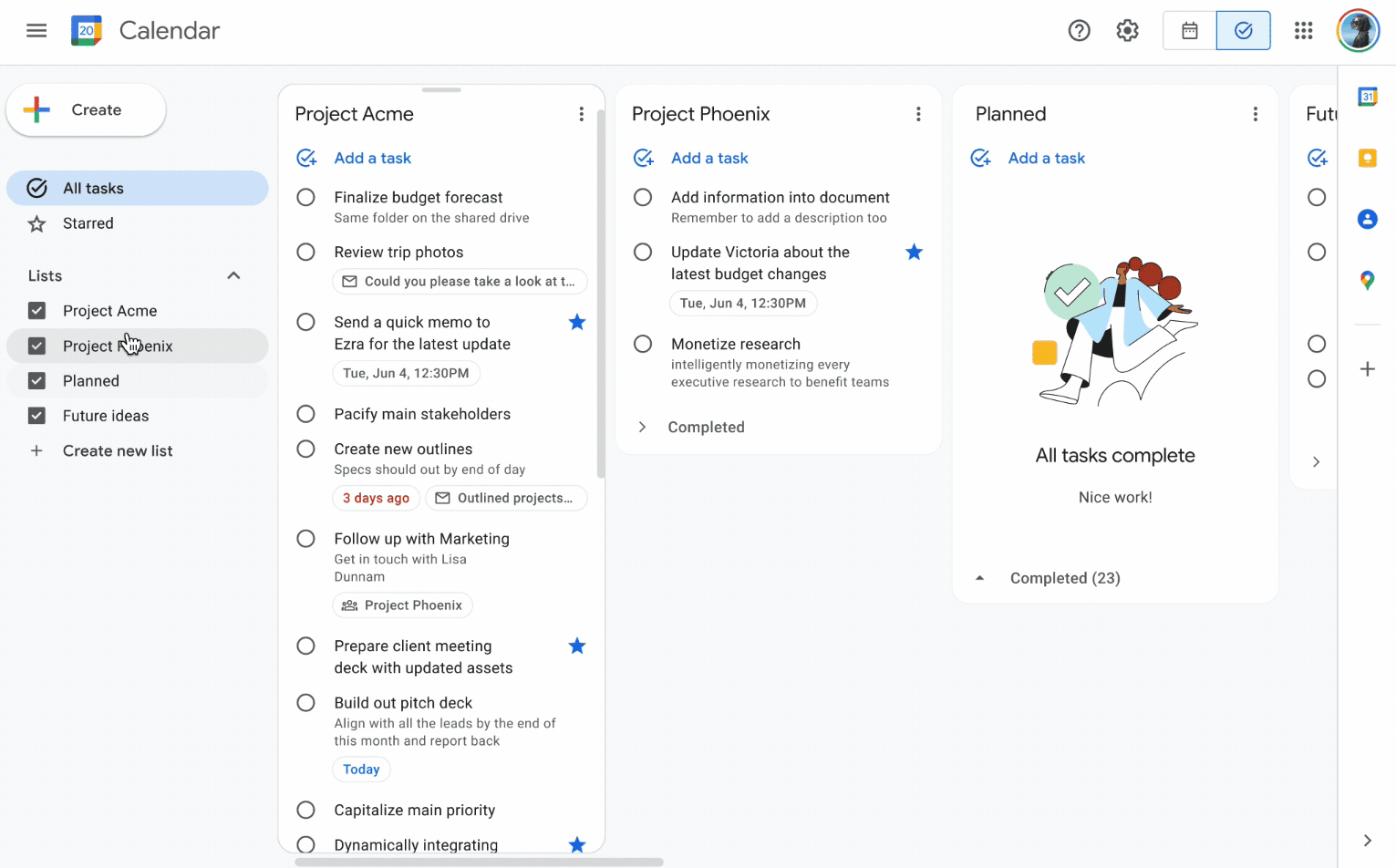
*Keep your task lists in one Google Tasks view. Source: Google*
How to add tasks to Google Calendar
Google Calendar lets you add, see, and change tasks. Another app is not necessary to see dated tasks with your calendar events.
To add a task on your computer:
- Open Google Calendar.
- Click Create.
- Select Task.
- Enter the task details and a date.
- Click Save.
For an existing task, make sure that it has a date. Under My calendars, select the Tasks box. Google Calendar can then show the task on that date. Google Calendar Help
If you keep Google Calendar open during the day, this can be sufficient. The task side panel also lets you change your list without another app.
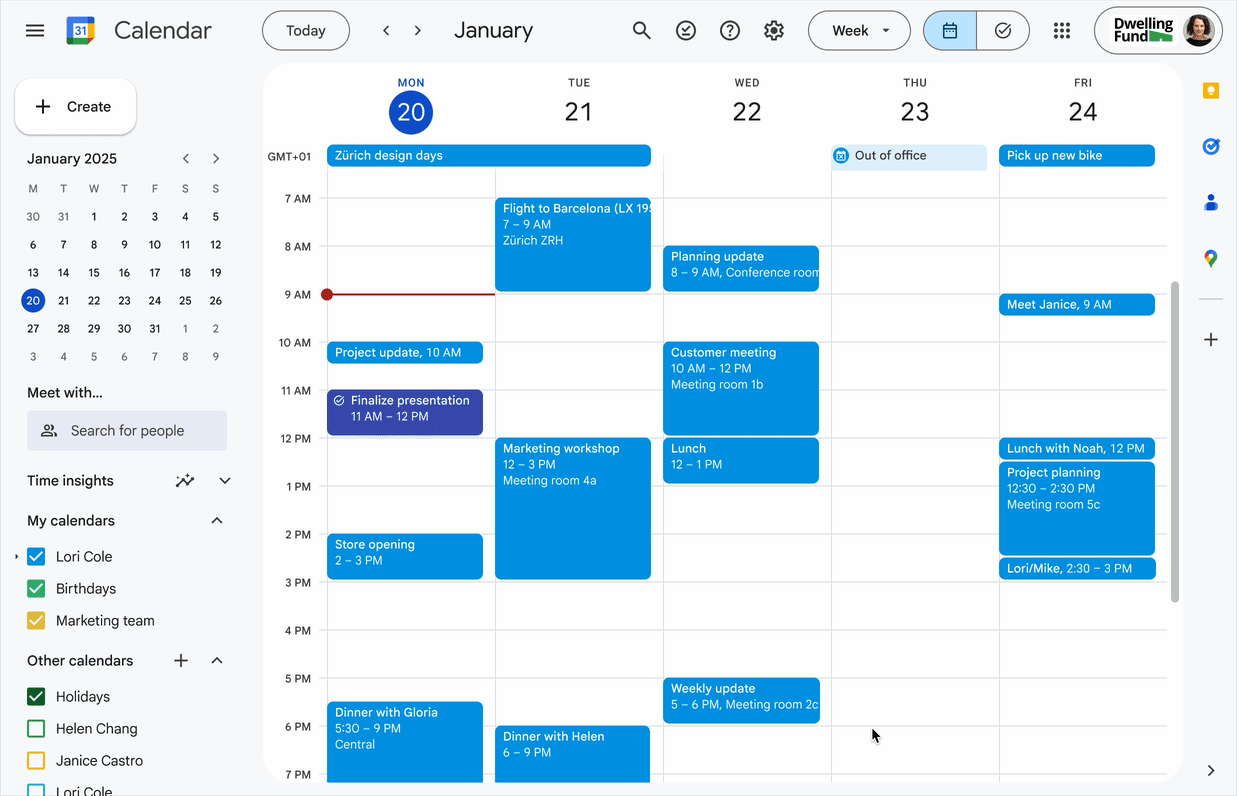
*See tasks and meetings together in Google Calendar. Source: Google*
Some people use the task list first. They add and complete many tasks but have only one or two meetings. They want to see those meetings while they use the list.
Keep the task list and today's events together
Use tasks for work that you can do at different times. Write a clear task, such as “Update the price list.” A fixed start time is not necessary for every task.
Use calendar events for meetings and appointments with fixed times. These events show when you must stop other work.
Then, look at both before you select the next task. You do not have to copy each meeting into your task list.
For example, you complete an email task at 2 PM. Your list still includes a price update and document preparation. The calendar shows a customer meeting at 3 PM. You can prepare the documents first, then return to the price update after the meeting.
You continue to use the task list first. The calendar helps you select the next task.
Use Go2Do to see tasks and events in one window
Go2Do gives you this option on Windows. It connects to your existing Google Tasks lists and shows Google Calendar events in the same app. Go2Do is not an official Google product. Go2Do features
Use quick add to record a new task. You can continue to add, change, and complete tasks from your lists.
With schedule mode on, Go2Do shows the day's Google Calendar events below the task list.
Open Today to see your tasks and the day's meetings together. The task list stays at the top. The calendar events stay below it, where you can see them before you start another task.
*See today's tasks and calendar events in Go2Do.*
In the morning, look at the list and the meetings. Identify any preparation tasks first. During the day, use quick add for new requests. Before a long task, look at the next meeting time.
You can use one app for these daily tasks. For meeting invitations, participants, or complex repeat settings, return to Google Calendar.
Connect your Google account and enable the calendars that you want to see. An internet connection is necessary to load calendar events.
Go2Do stores times from quick add in task notes. Those times do not set Google notifications. Make sure that important meeting times and notifications are correct in Google Calendar. Go2Do timing and connection details
Select the app that you will use first
If meetings determine most of your day, try the task features in Google Calendar first.
If you add and complete tasks more frequently, try a task list first. Keep the day's events with that list, so you can see them before the next task.
You can try Go2Do for Windows to use this layout with your existing Google Tasks lists.